Pay Report Groupings
Pay report groups are customisable groups that you can set up that allow you to bundle various factors together, such as specific skills, tasks, and pay elements and summarise them.
You can create Pay Report Groupings so that it is easier to see at a glance pay totals for a particular staff group. Existing reports can be edited or deleted from the system, as needed.
To create a new grouping, go to Pay > Pay Settings > Pay Report Groupings. Then, click Create Report Group from the Actions menu.
Add the appropriate report title so that it can be recognised from the main report grouping page, then select the relevant pay rates that you would like to include in the grouping.
You can also include cost codes that must be assigned to the report group. Only shifts or time entries with this exact cost code will be included. Cost codes are an optional setting that can be enabled on the Global Settings page.
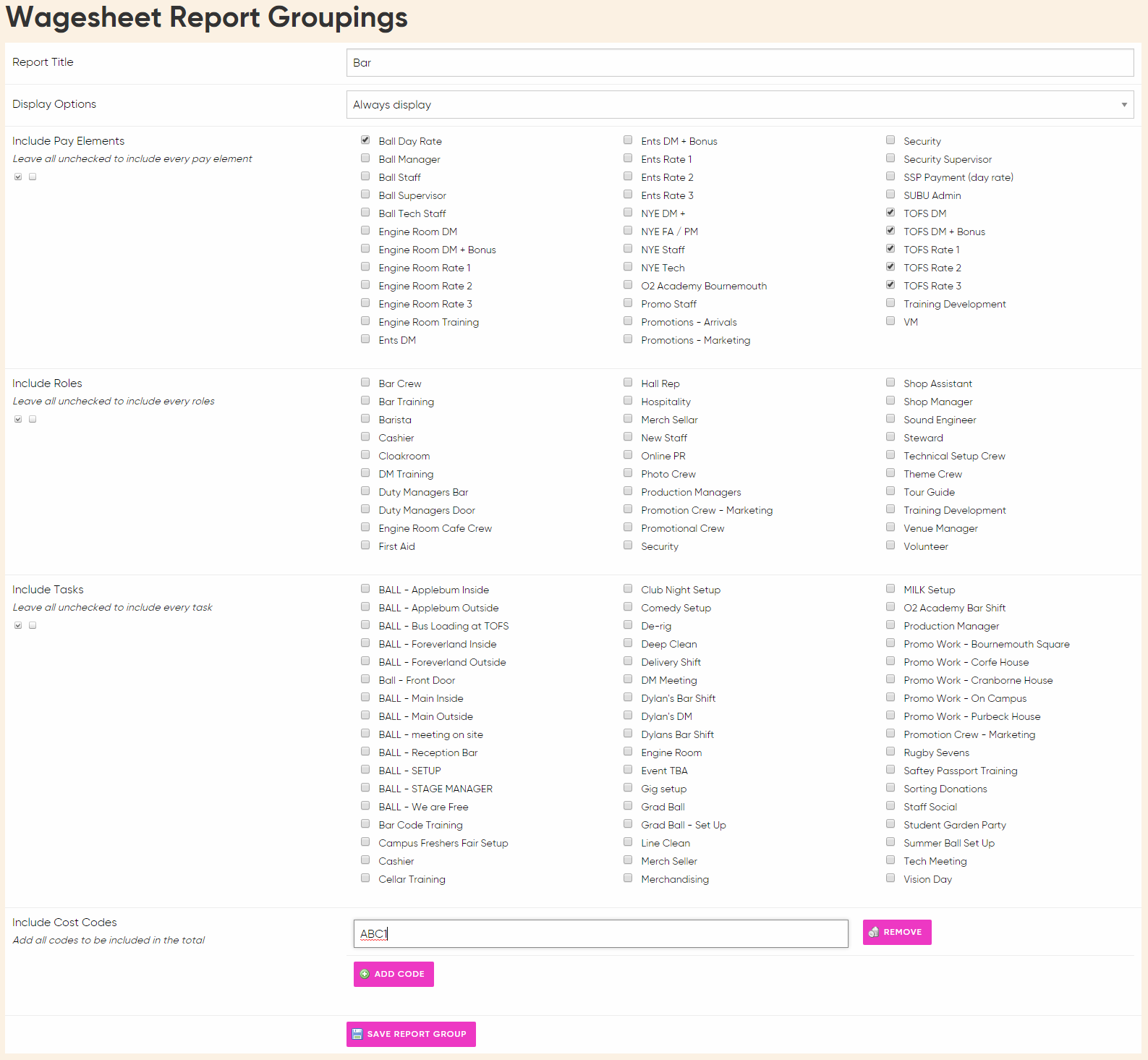
Once you are happy with your selection, click Save Report Group. Once you have created these groups they will pop up automatically at the bottom of your pay report with a line of summary for each created group.
This can be found by going to Reports > Time entries & Pay > Pay Report. Then run a report as normal and you can see your pay report group summaries at the bottom.
Each summary provides a convenient overview of the combined total hours and overall costs for that group.
Comments
0 comments
Please sign in to leave a comment.