Scoring forms allow for more specificity in the recruitment process.
You can create your scoring form independently and assign it to the position at any time before you start scoring your applicants.
You can assign different scoring forms for the interview process and add unlimited scoring rounds to match the number of interview rounds you conduct.
You can assign different scoring forms for the interview process and unlimited scoring rounds to match the number of interview rounds you conduct. Manage these under Recruitment > Forms > Scoring Forms.
This removes the requirement of our application forms to have scoring schemes assigned before opening the position to applicants. It also means that you can separate the scoring of application forms, interview sessions and more. Interview sessions can then be separated from application forms.
Forms can be used for both interview and scoring questions (i.e. additional practical questions not included in the application). The advantage of these forms is that they are not seen by applicants, only the scorer, so the scorer can mark them on questions that they don’t want the applicant to see and also to add interview questions that the scorer will need to mark them on.
Creating Scoring Forms
To create a new Scoring form navigate to Recruitment > Forms > Scoring forms. You can first create the title and details for the scoring form.
Then you can add scoring points, which are your form questions. You can leave instructions for how each scoring point should be scored. Scoring form points can now be extremely detailed in both point and any instructions you want to add.
Additionally, scoring forms now support weighting against each scoring point. By applying weighting to specific scoring points, you can prioritise certain responses over others. This functionality is particularly effective for prioritising essential job requirements or key criteria that should carry more influence in the overall assessment.

Click the Scoring Help button under the cog icon to leave information for recruitment shortlisters on how to score/if there is additional detail about what this question means.
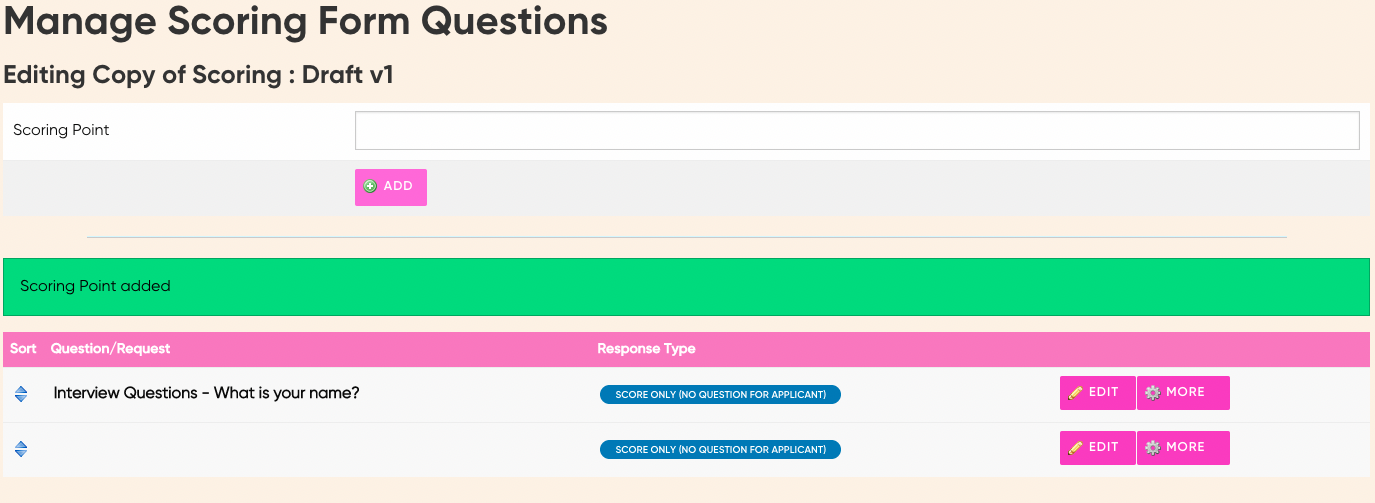
Manage Scoring forms
Points are saved automatically and you can go back to the managed scoring forms page to review and publish your forms.
Once you are happy, you can publish your draft and the scoring form will become live. To make changes to the form, you will need to create a new draft. You are able to remove different draft versions of scoring forms (found under the more button) if a draft was made in error.
To do this go to the Manage scoring forms page, create a new draft. Then under the More button, there is the option to remove the current draft.
Additionally, other options that come up if you click the more button allow you to set a category for your form and create a copy of the form that has been created.
Assigning Scoring forms
To integrate Scoring forms into the application, go to the Manage Positions page. Here, you will see a list of the currently available positions being recruited. To add a scoring form, go to edit the position you are interested in changing and then under the general tab, go down to Short Listing. From here, you can add a shortlisting form. There are three options to score the form, these are;
- Score Answers out of Three
- Score Answers out of Five
- Score Answers out of Ten
- Draft Decision/Quick Decision
Make sure you choose answers out of 3, 5 or out of 10 to enable the scoring forms. Choose Draft/Quick decision if you do not wish to use a scoring form.

Below this, you can add an Interview Scoring Form under Interviews.
Then, from here, the Scoring Forms will appear when you view your applications, at the bottom of the application. The ‘Interview Scoring’ will only appear once an interview has a booked date.

By clicking on View Application/Interview Scoring you will be able to score answers based on the scoring system you set up in the application settings, i.e. out of five.

Comments
0 comments
Please sign in to leave a comment.