Weekly Preferences
This article will go through how staff can set up their availability preferences and also how you can set up reserved hours and rules about which days staff can take off.
Staff can be allowed to provide their upcoming availability themselves without a manager approval process. This is done using weekly preferences found under My Account > My Availability > Weekly Preferences. It is worth noting that Weekly preferences only affect new shifts and do not change existing shifts.
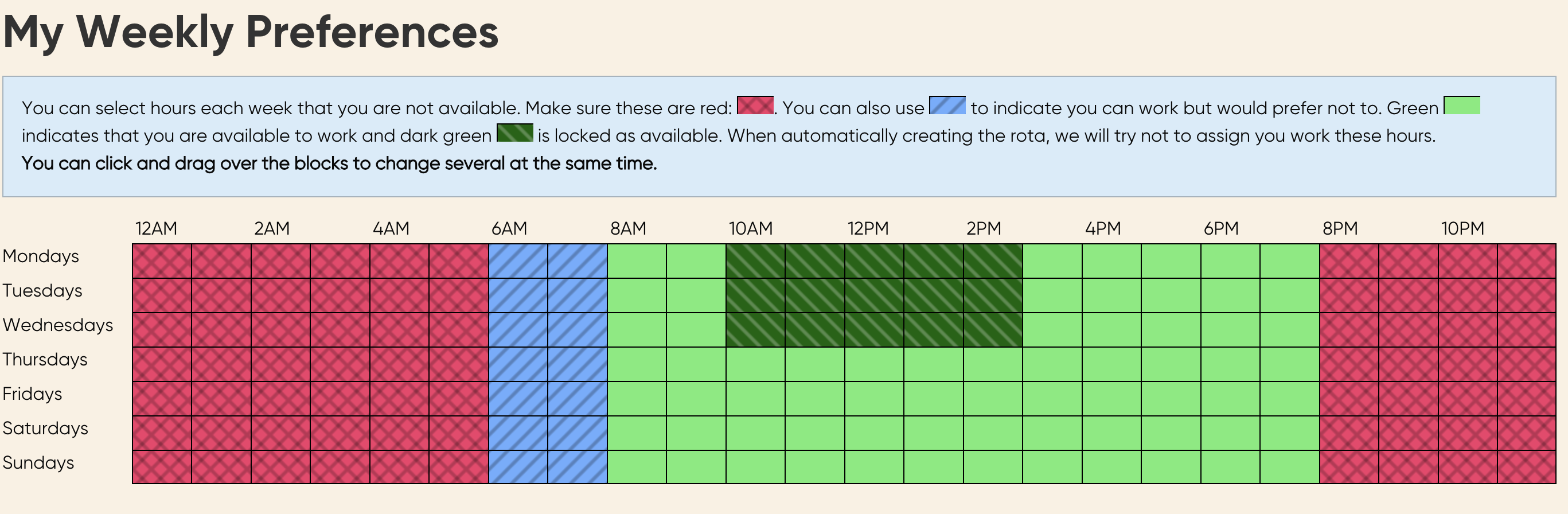
From here they will be able to see a view of a week (or multiple weeks) and can mark the times/days they cannot work on those weeks.
To indicate an entire day rather than certain hours you are unable to work, click the day of the week, and the day will become highlighted.
Staff have the option to set their own availability preferences, with three types of availability: available (green), unavailable (red), and prefer not to work (blue). The prefer not to work option will appear in blue and allow managers to differentiate between times staff absolutely can’t work and times they can work if needed but prefer not to. The dark green is for reserved hours that are locked as always available.
Reserved Hours
You also restrict the hours that staff members can reserve. This allows you to effectively block out sections of the week so that staff must put in holiday/time off requests (that are manager-approved) if they wish not to work those times. This is very effective in preventing staff from self-booking off your busiest times.
Reserved hours (home venue)
You can set these times per venue using the Set Reserved Hours option in the venue’s settings. This can be found via System > Departments & Venues > Manage Venues. From here you can click the MORE button and choose the Set Reservable Hours option or when you are editing a venue this option also appears under Staff Availability in the Shift Configuration tab.
When applied, the staff members will see a dark green section where they cannot change their availability.

Reserved hours & default availability (per contract)
In addition to setting reserved hours per venue, you can also apply reserved hours to a contract. This means that staff on that contract will also have these restrictions applied.
Furthermore, you can set default non-availability on the contract. This means that unless staff change it, the system will apply the default availability. This is useful if your employment agreement with them says they will not be asked to work outside of specific hours without their consent.
Set contract reserved hours and default availability on the contract itself via Pay > Contracts > Manage Contracts.
Availability time block rules
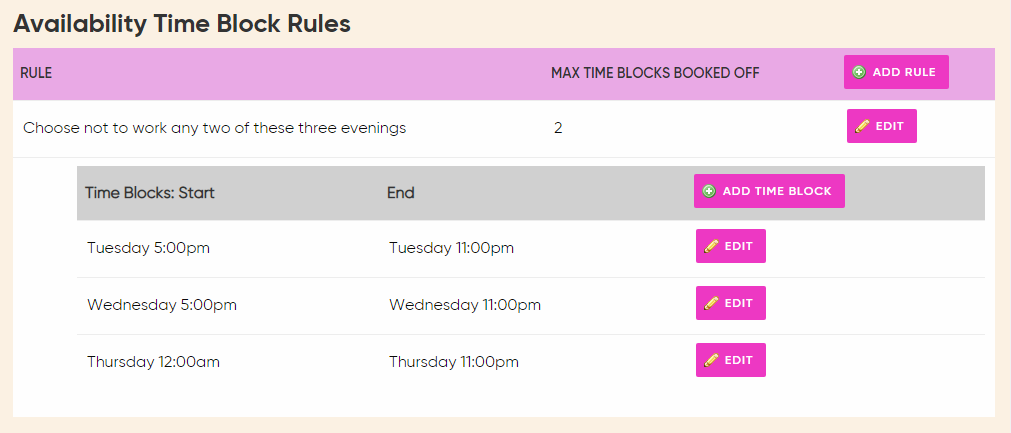
Another availability feature we have allows you to add complex rules to the Staff Availability page so that staff cannot book combinations that cause issues with full team availability. You can set this up under System > Departments & Venues > Manage Venues > Set Reserved Hours. Click the MORE button next to the venue. The rules are at the bottom of the page.
Within each rule, you can set a number of blocks and then limit the number of blocks that can be self-reserved.For example, you might have a rule that could allow your staff to book off a Friday night or a Saturday night but not both. Or you could book off the first weekend but not the second.
Number of weeks
The system can support from one to twelve individual weeks. This means staff can book up to 12 different weeks of availability in advance. We recommend you only provide the number of weeks necessary. You can simply ask them to complete a typical week, and that week will be repeated.
If you work with a lot of students who have a two-week educational time table then you might allow them to schedule two weeks and then repeat.
By default, staff weekly preferences will be kept and repeated. This means staff just need to adjust their availability. You can also instruct the system to forget their availability as they must provide it afresh every time.
Maximum reserved hours
Managers can set a maximum number of hours staff can book as unavailable each week. Once this limit is reached then they will need to put in a holiday request or Unpaid Time off request (depending on their contract).
Minimum gap
The minimum gap setting enforces a period of time after some non-availability where staff must be available. It works hand-in-hand with maximum hours so that staff cannot simply request one hour off every 3/4 hours and block all shifts for a single day. They must use up their minimum hours off as a solid set of unavailable hours rather than exploiting the system and setting a checkerboard of unavailability.
Show week numbers
This decides if the weekly preferences are shown with week numbers or not. Week numbers allow staff to see which week number they are on out of the number of weeks you allow them to set. This can help to match it to other timetables.
Staff choice of hours
This option allows staff to set the number of hours they would like to receive in a given week. They can choose a number between their contracted minimum and contract maximum hours.
This information will be used by the schedule creation tool to assign hours to staff. It’s also displayed within the transfer shifts popup so you can allocate additional shifts to those who want them.
Remember preferences
This option will remember staff preferences from week to week. For example, if you only allow one week of preferences to be set then their preferences will be repeated every week. If you allow 10 weeks, then the system will loop through the provided availability weeks. This is recommended as it enables most staff to set their preferences less often.
Lock weekly preferences
This is an option to prevent any staff based at this venue from editing their preferences at all. This is not necessary as the system is designed to cope with continuous changes, and existing shifts will not be affected by any changes in the weekly preferences.
Staff availability on Shift Schedule
You now also have the option to view staff member's availability on Shifts > Manage Shift Schedule.
Under this page, you can display or hide each staff member’s availability. If displayed, hovering over a staff member with good availability will show a green bar. If there are times when the staff member has suggested they are not available, the bar will come up as orange, giving you a clear visual reminder of availability when scrolling through.
The system then looks at their holiday, absences, booked absences, planned holiday, and availability and stores the information in a database to pull it up here.
Comments
0 comments
Please sign in to leave a comment.