Performance and Welfare Forms
Under Performance and welfare forms, you are able to create multi-step forms that can be completed by multiple parties, such as HR, line managers, and staff members. The forms are perfect for reviews, one-two-ones, investigations, and more.
To create your first new performance and welfare form, simply go to System > Documents & Forms > Manage Performance and Welfare Forms. Then, use the Create New Performance & Welfare forms button to start your new form.

You’ll be asked to name the form and give an explanation of the process for staff who are completing it.
You can then choose the access levels that can both assign new forms to be completed and view the completed form. Finally, choose where this form should be displayed; under the Personal Records tab on a Profile or within My Documents. The access permissions apply wherever the form is displayed.
Phases
Forms use phases to separate out each step of completing the form. Each phase can be completed by a different person, for example, Phase 1 could be completed by the staff member, Phase 2 completed by a line manager, and Phase 3 completed by a member of another skill/role. This is just an example, you can have as many phases as you like, with different people completing each phase.
When you first create a form, the system will set up the initial phase for you. You will see at the top of the form, you have access to Manage Phases.

On the manage phases page, you can add and edit all phases. Every form needs at least one phase.
In the image below are the phases for the example we discussed above with: staff member first, line managers comments second, and the HR team sign off. Under completed by, you can select subject staff member (who it was assigned to), this is typically who is assigned to Phase 1. If you have more phases you can choose who you want them completed by the line manager of the assigned staff member or someone who has a specific skill (Like HR).
You can use the blue order arrows on the left to arrange the phases. Once you are happy with the phases, use the Manage Questions button in the Actions Menu to return to the form’s questions to start building you form.
Question Types
Now you are ready to add questions you can also set how you want people to be able to respond. You have the usual answer formats available such as text and multiple choice. You also have ratings (e.g. 0 to 10) and signatures (when the person completing the form can sign their part of it, which can be helpful for managers).
All that is left to do is write out your questions, choose your response format, and choose the phase to assign questions to.
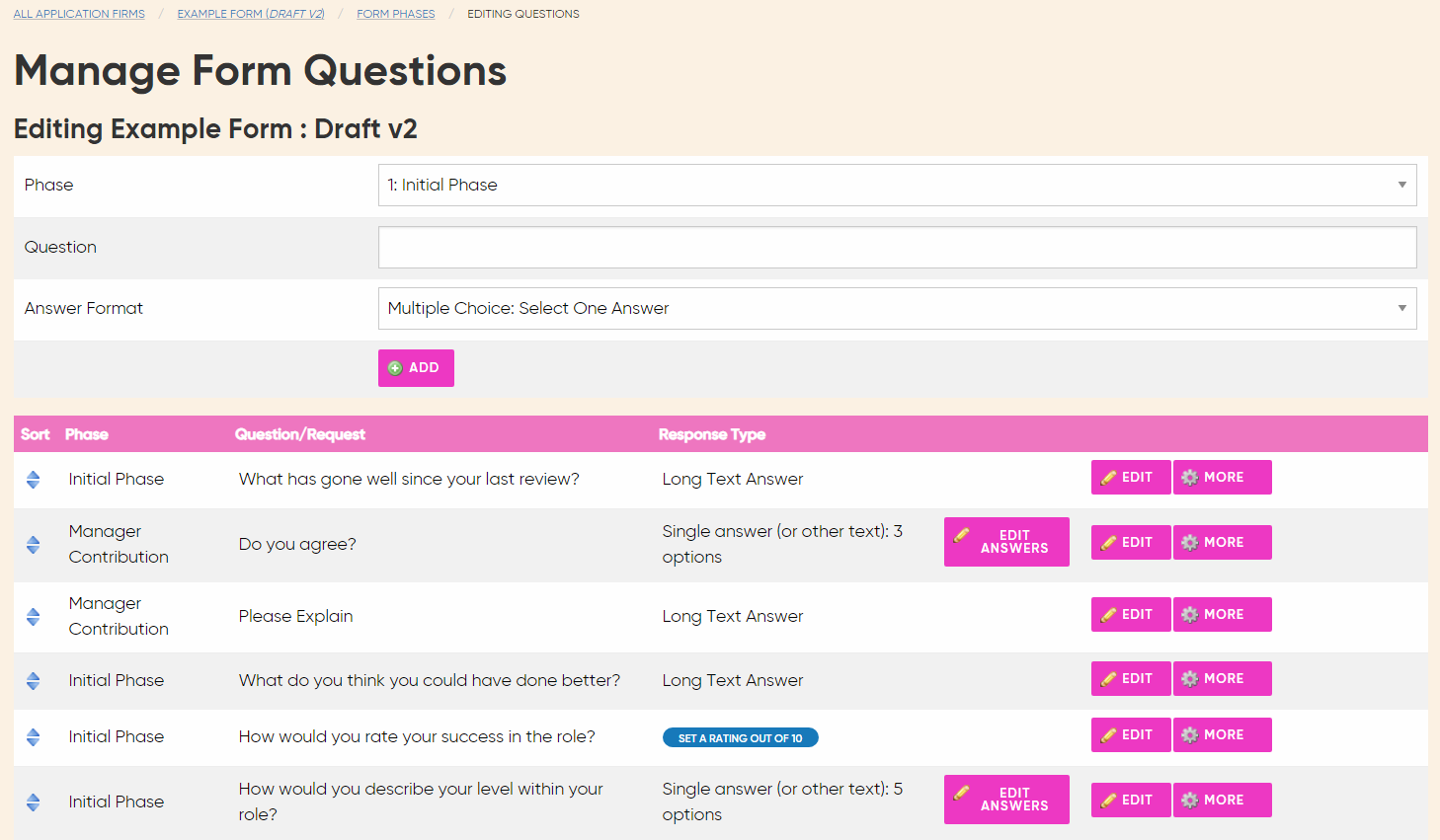
What would this look like?
If you were creating questions for the example we discussed earlier, there are three different phases you can assign each question to, Phase 1 - Initial phase, Phase 2 - Manager contribution, Phase 3 - HR sign off. You would first want to create the questions you want the staff member to answer and assign them to Phase 1. Then, you would add questions that ask a manager to respond to these answers, for Phase 2.
The first question in the image above is directed to the staff member so it should be assigned to be Phase 1 question. The staff member would only be able to see the questions in Phase 1.
When the staff member has completed the form, then a manager would be able to complete Phase 2, which is to comment on that feedback. The manager feedback would be displayed just below the staff member’s comments when someone reviews the form.
Once you have added all of your questions for each phase click save and your form is almost ready.
Publishing your form
The last thing to do before your form goes live and can be assigned is to publish it. As per other form builders, this form is version controlled so any changes made to the questions will require a new version.
Once you have completed your initial version, you must publish it to be able to use it. Go to the forms overview page where you can see a list of all forms to publish this version.
Assigning forms to be completed
Once the form is ready, you can start assigning it to staff to complete. You can manually assign forms to be completed under each staff member’s profile. Choose Documents > Assign Performance & Welfare form.
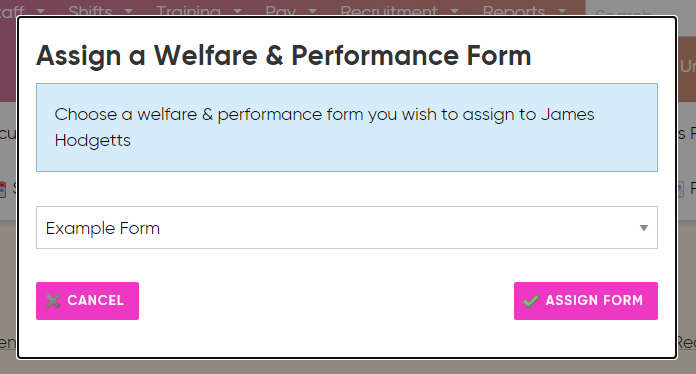
This will notify them to complete it and display the notification on their dashboard. If you want to assign forms after a certain time period, you can also assign forms using triggers; so forms can be assigned after X days or X shifts.
Completing the forms
You can access any assigned forms from the Notifications section of your Dashboard, just click to get started.
When completing the form, the system will display the questions from the current phase alongside the answers from any previous phases. The phases and status is shown in the top right of the page.
Viewing Performance and Welfare forms
Once forms have been created, assigned and completed you are able to view them under a staff member's profile. Either in the Personal Records tab or Via the Actions Bar > Documents. If the form has been assigned but not yet completed you will also be able to see the progress of the form.
When viewing a staff member's personal record under the Welfare & Performance tab, you will now see the date and time the form was issued, and, if relevant, the name of the person who issued the form.
Forms can be downloaded as a PDF too. The system will format up the details of the form at the top of the page along with all of the answers.
You are also able to assign a performance and welfare form to a case once it has been assigned, if it relevant to an ongoing investigation.
Follow Up Forms
You can choose to add a follow up form within the form general settings. This can either be a pre-set follow up form (to be completed after a fixed period of time) or you can choose to recommend a form where the schedule can be adjusted.
Recommending a form can be a helpful option as it provides more flexibility. For example, at the end of a probation period, you might want to offer a choice between completing an extended probation form next or a regular review.
When you view the original welfare and performance form you can also view and edit the follow up form. You can edit the date here or choose to remove the form entirely.
Deleting and Sending Back Forms
Managers are able to delete both complete and incomplete forms by viewing the form under a staff member's profile page. The delete option will appear in the actions menu. Staff cannot remove their own forms.
Another thing to note is that a staff member(s) assigned to complete the current phase has the option to send the form back to the previous phase (and the staff member(s) previously assigned the form). This allows a form to be sent backwards to have changes made.
Welfare and Performance reports
You can view a summary of all welfare and performance reports under this Reports > Welfare & Performance > Welfare & Performance Reports (You can also review Check-in reports & Personal record reports from this tab). This allows you to see all ongoing and completed form in one place for review. You can see which forms have been completed and filter them by staff member, form, venue and date range.
You can also access these reports under a staff member’s account to see if the individual has completed forms.
Comments
0 comments
Please sign in to leave a comment.